WordPress powers over 40% of the web. That makes it the biggest target for hackers, bots, and automated attacks. Every single day, thousands of WordPress sites get compromised. Not because WordPress is insecure by design, but because site owners skip basic security practices.
The good news: most attacks exploit the same handful of weaknesses. Fix those and you eliminate the vast majority of threats. This is the practical checklist we follow for every WordPress site we build and maintain.
Start with good hosting
Your hosting provider is your first line of defense. A bad host with outdated server software, no firewall, and shared resources is an open invitation.
What to look for:
- Server-level firewalls and DDoS protection
- Automated daily backups (not just weekly)
- Free SSL certificates included
- PHP version 8.2 or higher (8.3+ recommended for best performance and security)
- 24/7 support that actually responds
Shared hosting is the cheapest option, but it means you're sharing server resources with hundreds of other sites. If one of them gets compromised, the attack can spread. VPS or dedicated hosting gives you isolation. For most small to medium sites, a quality shared host like Hostinger is a reasonable starting point.
Keep everything updated
This is the single most important security practice. And the most ignored one.
WordPress core, your theme, and every plugin you have installed receive regular updates. Many of those updates patch known security vulnerabilities. When you skip updates, you're leaving documented entry points wide open for attackers.
Set up a system:
- Enable automatic updates for WordPress core
- Update plugins and themes at least weekly
- Delete any plugins or themes you're not using. Deactivated plugins can still be exploited. This applies to page builders too. If you're wondering whether Elementor is the right tool for your project, factor in the security maintenance it adds.
- Check for updates manually if automatic updates aren't an option
If an update breaks something, that's why you have backups. Speaking of which.
Automate your backups
Backups aren't optional. They're your insurance policy. If your site gets hacked, a clean backup is the fastest path to recovery.
Use UpdraftPlus or BlogVault to schedule automatic backups. Daily is ideal. Weekly at minimum. Store them off-site on Google Drive, Dropbox, or Amazon S3. Never rely solely on backups stored on the same server as your site. If the server is compromised, your backups go with it.
Test your backups periodically. A backup you can't restore is not a backup.
Lock down your login page
The WordPress login page at /wp-admin is the front door that every bot on the internet knows about. Here's how to reinforce it.
Use strong, unique passwords. Not your company name plus the current year. Use a password manager. Generate something random and long. This is not negotiable.
Enable two-factor authentication (2FA). Install a plugin like WP 2FA or Two-Factor. Even if someone steals your password, they can't log in without the second factor. Use an authenticator app like Google Authenticator or Authy for the verification codes. If your plugin supports passkeys, even better. They replace the password with a device-bound login that cannot be phished.
Limit login attempts. By default, WordPress allows unlimited login attempts. That means bots can try thousands of password combinations. Plugins like Limit Login Attempts Reloaded or Wordfence block IPs after a set number of failed tries.
Change your login URL. The default /wp-admin and /wp-login.php paths are the first places attackers look. A plugin like WPS Hide Login lets you change this to something unpredictable. It's a simple change that stops a lot of automated attacks.
Restrict admin access by IP. If you and your team always work from the same locations, you can whitelist those IP addresses and block all others from accessing the admin panel. This isn't practical for everyone, but it's extremely effective when it works.
Install a security plugin
A dedicated security plugin adds multiple layers of protection without requiring you to configure each one manually.
Wordfence is the most popular option. It includes a web application firewall, malware scanner, login security features, and real-time threat intelligence. The free version covers the essentials. The premium version adds real-time firewall rules and country-blocking.
Sucuri is another strong choice, especially if you want a cloud-based firewall that filters traffic before it even reaches your server.
iThemes Security (now SolidWP) offers file change detection, database backups, and brute force protection.
Pick one. Configure it properly. Don't install multiple security plugins. They conflict with each other and create more problems than they solve.
Set up SSL/TLS properly
An SSL certificate encrypts the connection between your visitors and your server. Without it, data travels in plain text. Passwords, form submissions, everything.
Most hosts now include free SSL via Let's Encrypt. Make sure it's active. Your site should load over https:// exclusively.
Enable HSTS (HTTP Strict Transport Security). This tells browsers to always use HTTPS, even if someone types the HTTP version of your URL. It prevents downgrade attacks and ensures encrypted connections at all times.
Force HTTPS in WordPress. Update your WordPress Address and Site Address in Settings > General to use https://. Install a plugin like Really Simple SSL if you need to fix mixed content issues.
Manage user accounts properly
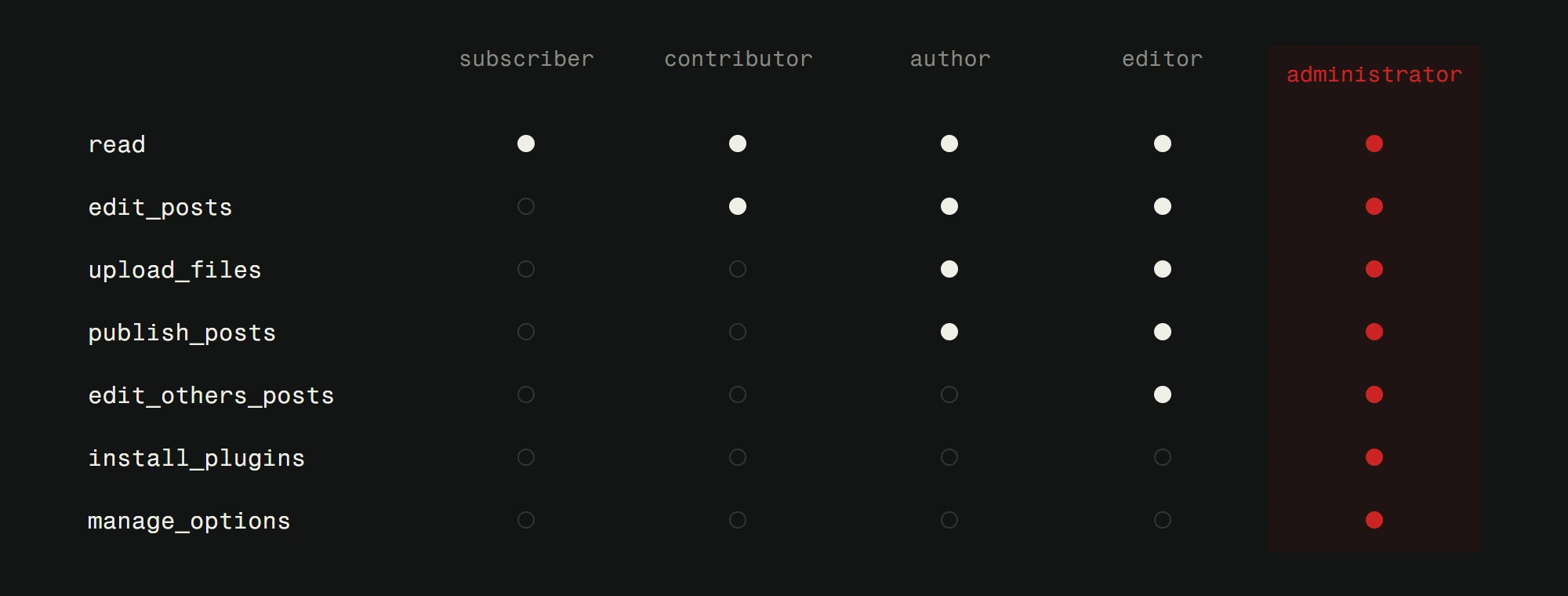
Not everyone who has access to your WordPress admin needs full administrator privileges. The principle of least privilege applies here.
- Editors can manage content but not install plugins or change settings.
- Authors can write and publish their own posts.
- Contributors can write drafts but not publish.
Use the User Role Editor plugin if you need custom roles beyond what WordPress provides by default.
Remove inactive user accounts. Change passwords when team members leave. Audit your user list quarterly.
Monitor your site
Security is not a set-and-forget situation. You need to know when something goes wrong.
Activity logging. Plugins like WP Activity Log track every change made in your admin panel. Who logged in, what they changed, when they did it. Invaluable for troubleshooting and incident response.
Uptime monitoring. Use a service like UptimeRobot or your hosting provider's built-in monitoring to alert you if your site goes down.
File integrity monitoring. Your security plugin should alert you if core WordPress files are modified unexpectedly. Unauthorized file changes are one of the first signs of compromise.
When you've outgrown WordPress security concerns
For many businesses, a well-secured WordPress site is perfectly adequate. Follow the practices above and you'll be ahead of 95% of WordPress site owners.
But if your site handles sensitive data, processes transactions, or operates in an industry with strict compliance requirements, the WordPress plugin approach to security has limits. You're stacking third-party tools on top of a platform that was originally designed for blogging.
Custom-built web applications give you security at the architecture level. No plugin vulnerabilities. No theme exploits. No attack surface from unused features. Just the code your application needs, secured the way it should be.
We manage security for both types of projects. For WordPress clients, we handle updates, monitoring, and incident response through our maintenance plans. For custom projects, security is baked into the build from day one.
Where does your site stand?
Run the free check: we read what your site shows publicly, with no passwords and no access. If you want someone to watch and patch it regularly, see the protection plans.
Not sure if your WordPress site is properly secured? Request a free website analysis and we'll audit your current setup and tell you exactly what needs fixing.