WordPress powers more than 40% of all websites on the internet. There's a reason for that. It's flexible, it has a massive ecosystem, and you don't need to write code to get a site up and running.
But "easy to start" doesn't mean "easy to do well." Most WordPress sites built by beginners share the same problems: slow load times, security holes, messy design, and plugins stacked on top of plugins. This guide will help you avoid those traps.
Step 1: Get your hosting right
Everything starts with hosting. Your host determines how fast your site loads, how often it goes down, and how many headaches you deal with. Don't cheap out here.
Look for a host that offers one-click WordPress installation, free SSL certificates, automated backups, and actual 24/7 support. We use and recommend Hostinger for WordPress projects. It hits the right balance of price and performance.
Avoid free hosting. Avoid the cheapest plan with "unlimited everything" because nothing is truly unlimited. Start with a solid foundation and you'll thank yourself later.
Step 2: Install WordPress
With a good host, installation takes about 60 seconds. Most hosting control panels have a one-click WordPress installer. Click it. Fill in your site name, admin email, and create a strong password.
Write down your login credentials somewhere safe. You'll access your admin panel at yourdomain.com/wp-admin.
If your host doesn't offer one-click installation, you can install manually via FTP. Download WordPress from wordpress.org, upload the files to your server, create a database, and run the installer. It's not complicated, but the one-click method is faster.
Step 3: Choose a theme (carefully)
This is where most beginners go wrong. They pick a theme because it looks pretty in the demo. Then they realize it loads 14 font files, three JavaScript libraries, and 200KB of CSS they don't need.
What to look for in a theme:
- Speed. Run the theme's demo through Google PageSpeed Insights before you install it. If it scores below 70, keep looking.
- Responsiveness. Check how it looks on mobile. Not just "does it work on mobile" but "does it look good on mobile." Most of your visitors are on phones.
- Simplicity. The best themes do less, not more. You want a clean foundation you can build on. Not a theme that tries to do everything and does nothing well.
- Active maintenance. Check when the theme was last updated. Abandoned themes are security risks.
The WordPress theme directory has solid free options. GeneratePress, Astra, and Kadence are all good starting points. If you go premium, buy from reputable marketplaces and read the reviews.
Step 4: Install only the plugins you need
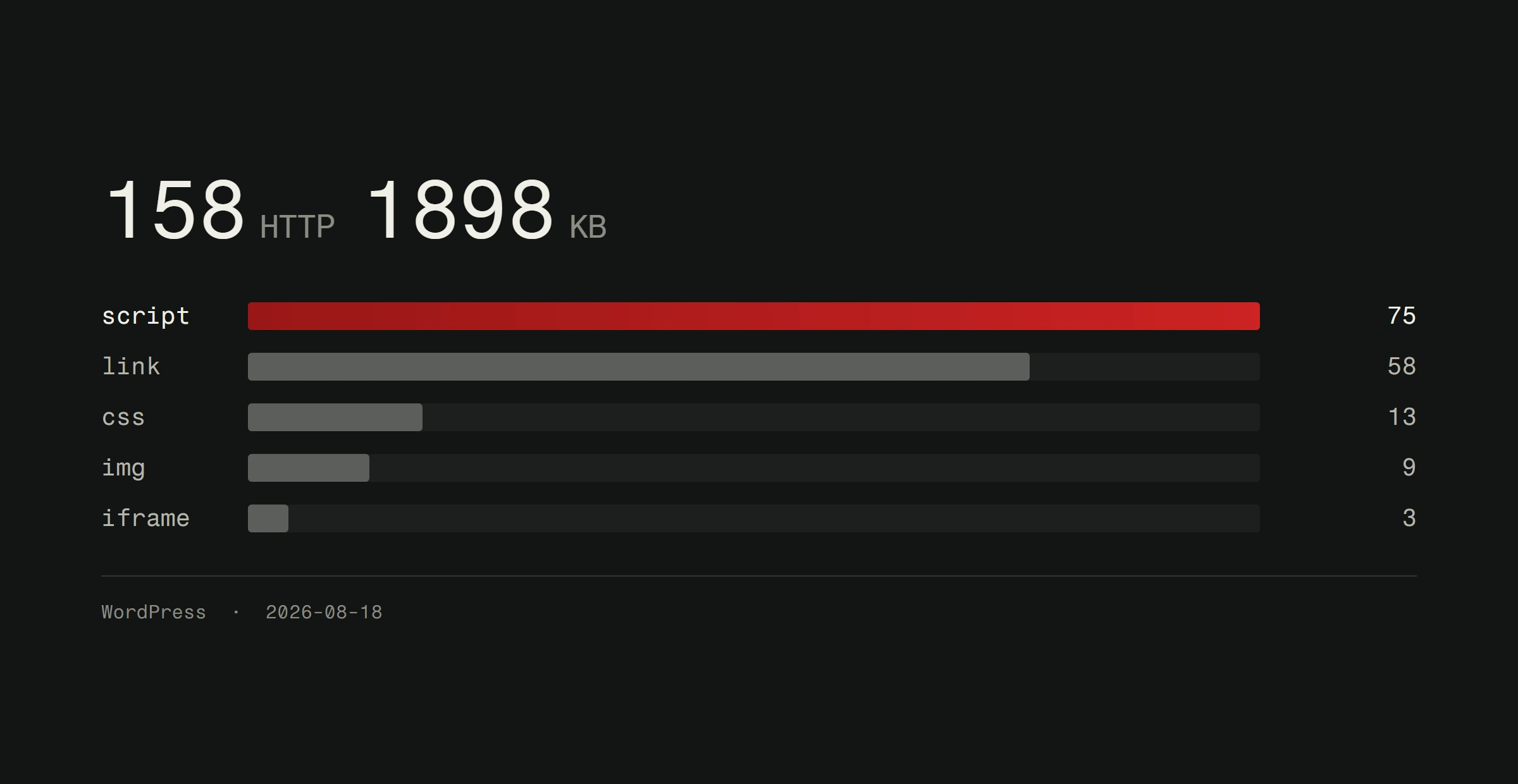
Plugins are WordPress's superpower and its biggest weakness. Every plugin you install adds code to your site. More code means slower load times, more potential security vulnerabilities, and more things that can break.
Essential plugins for most sites:
- Yoast SEO or Rank Math. For search engine optimization basics. Meta titles, descriptions, sitemaps.
- Wordfence or Sucuri. For security. WordPress sites are constant targets. Protect yours from day one. Read more about protecting your WordPress site.
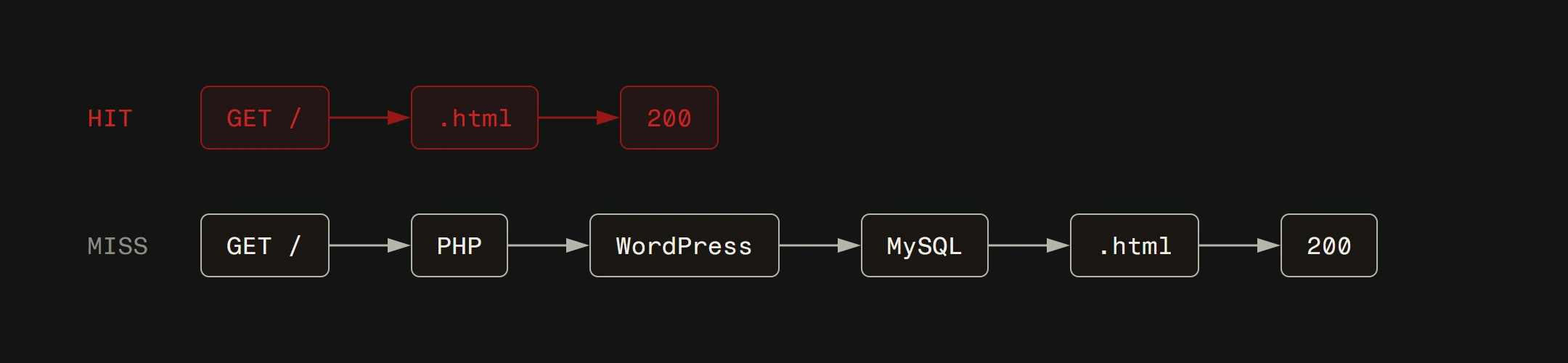
- A caching plugin. WP Super Cache or W3 Total Cache. These create static versions of your pages so your server doesn't rebuild them for every visitor.
- UpdraftPlus. For automated backups. Because things go wrong and you need a way to undo them.
That's it for starters. Resist the urge to install 20 plugins. Every one you add is a dependency you have to maintain.
Step 5: Create your core pages
Before you start blogging or adding features, build your essential pages:
- Home page. Clear headline, what you do, who you help, and a call to action.
- About page. Who you are. Why visitors should trust you.
- Contact page. Make it easy for people to reach you. A simple form, your email, your location if relevant.
- Services or Products page. What you're offering.
Write short paragraphs. Use headings to break up content. Add images that add value, not just decoration. Every page should have a clear purpose and a clear next step for the visitor.
Step 6: Configure your settings
A few settings that beginners often overlook:
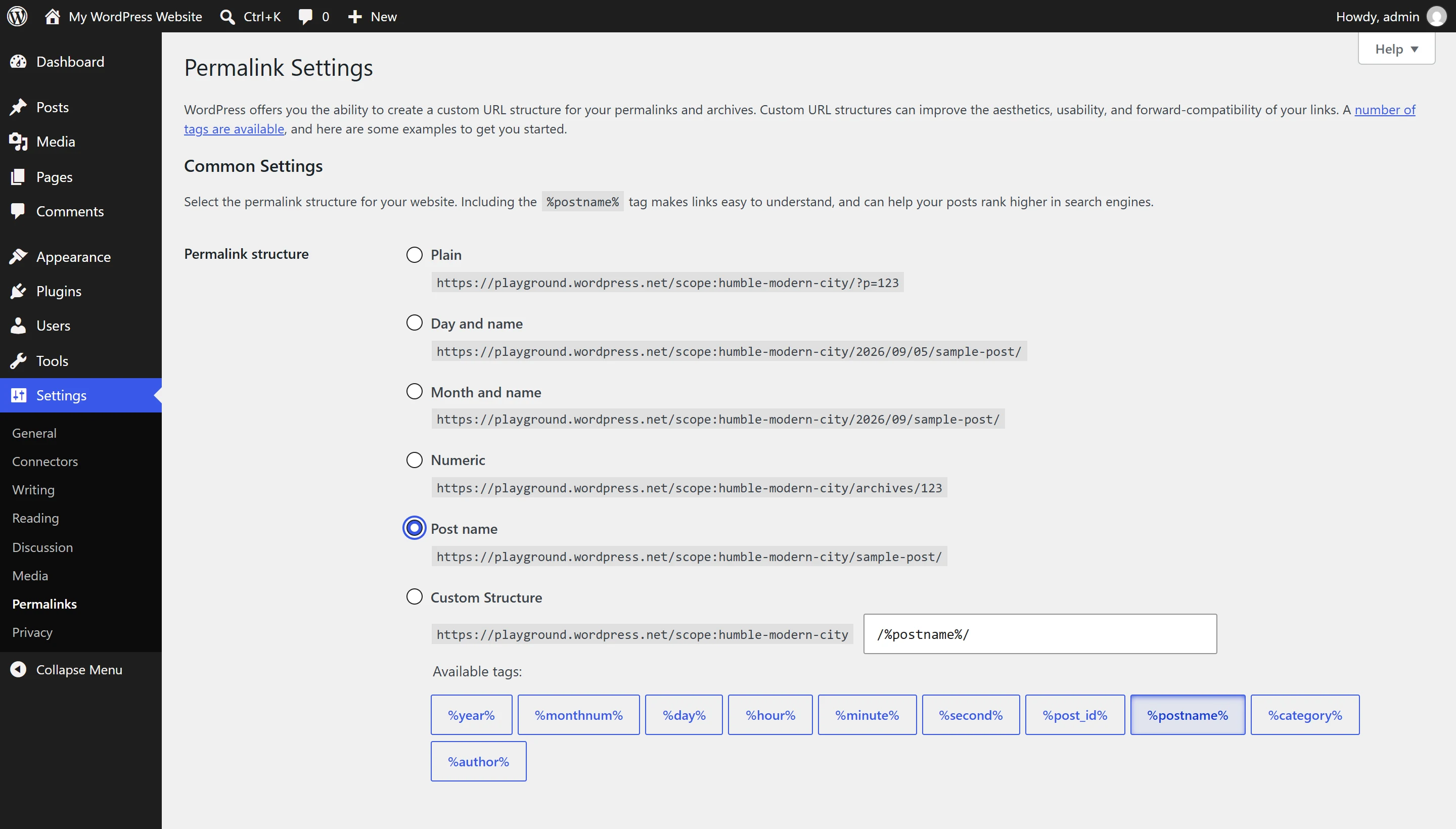
- Permalinks. Go to Settings > Permalinks and select "Post name." This gives you clean URLs like
yourdomain.com/aboutinstead ofyourdomain.com/?p=123. - Reading settings. Set your homepage to a static page, not your latest posts (unless you're running a blog-first site).
- Discussion settings. Decide if you want comments. If yes, enable moderation. Spam comments are relentless.
- SSL. Make sure your site loads over HTTPS. Your host should provide a free SSL certificate. If your site still shows HTTP, fix that immediately.
Step 7: Think about speed from day one
Speed isn't something you optimize later. It's something you build into the site from the start.
Choose a lightweight theme. Use optimized images (compress them before uploading, or use a plugin like ShortPixel, and serve modern formats like WebP or AVIF where you can). Install a caching plugin. Minimize the number of plugins. Pick a good host.
These habits add up to your Core Web Vitals, the loading and stability scores Google now factors into rankings. If you want to go deeper on performance, our guide on website speed optimization covers the technical details.
When WordPress is enough (and when it's not)
WordPress is an excellent platform for blogs, small business sites, portfolios, and simple e-commerce stores. For many businesses, it's exactly the right tool.
But it has limits. If you need complex custom functionality, if performance is business-critical, or if you're building something that doesn't fit neatly into the WordPress mold, you'll eventually hit a ceiling. Page builders add overhead. Plugin dependencies create fragility. And you're always working within someone else's framework.
WordPress is a solid starting point. When you're ready for more, custom web development is the way forward. A site built specifically for your needs, with no unnecessary code, no plugin conflicts, and no compromises.
We build both. WordPress for clients who need a solid, maintainable site at a reasonable budget. Custom for clients who need something more. The right choice depends on your goals, your timeline, and where your business is headed.
Starting a WordPress project? This guide gets you a clean start. And when your business outgrows it, we build custom.